 en-US


 Telegram
 WeChat



MetaTrader 5 Login Tutorial
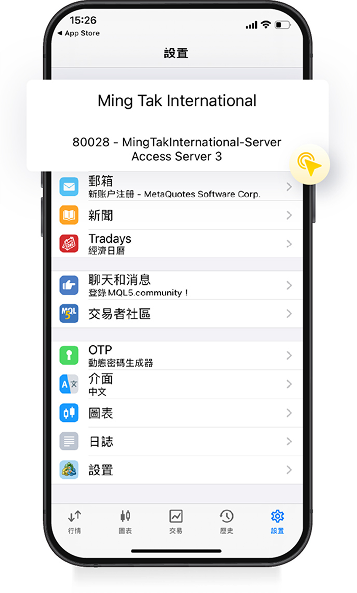
1Log In to Your AccountOpen the desktop MT5 trading software, go to the "File" menu at the top left, find "Login to Trade Account" and click to open it.
2Enter Your Account Number(Description to be added)
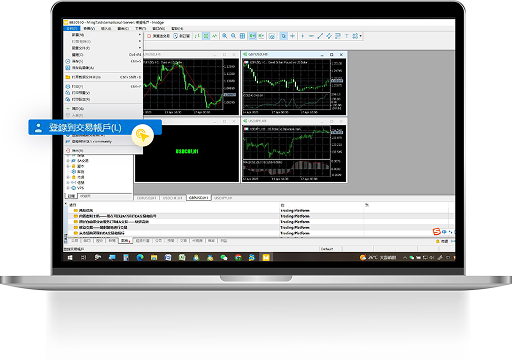
1Accept the TermsWhen opening the MT5 trading software on mobile for the first time, tap "Accept" to agree to the terms.
2Open a Demo Account(Description to be added)
3Open the Menu(Description to be added)
4Tap "Manage Accounts"(Description to be added)
5Add a New Account(Description to be added)
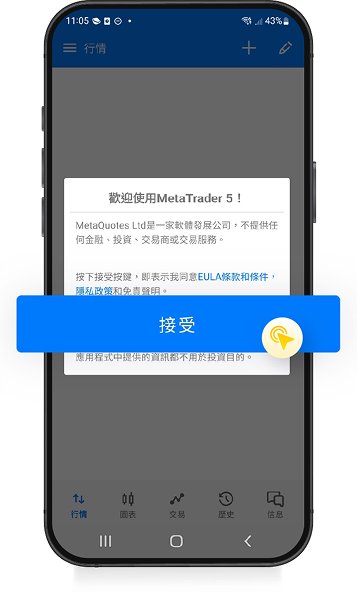
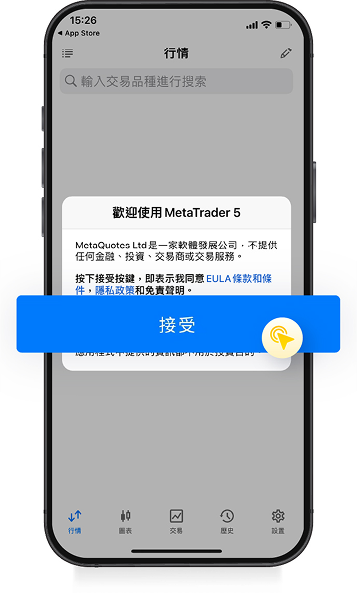
1Accept the TermsWhen opening the MT5 trading software on mobile for the first time, tap "Accept" to agree to the terms.
2Open a Demo Account(Description to be added)
3Go to Settings(Description to be added)
4Add a New Account(Description to be added)
5Find a Broker(Description to be added)
MetaTrader 5 Password Change Tutorial
1Open the MenuAfter logging in, go to the menu bar at the top, click "View", then select "Navigator".
2Select "Change Password"(Description to be added)
3Change Your Password(Description to be added)
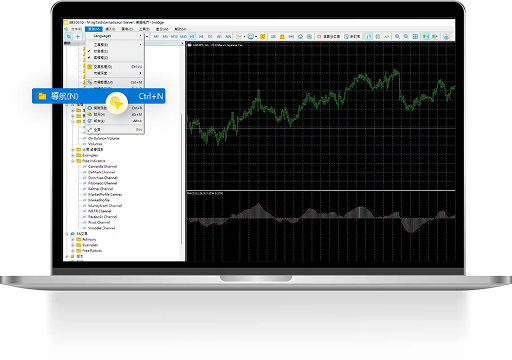
1Go to Settings(Description to be added)
2Select an Account(Description to be added)
3Change Password(Description to be added)
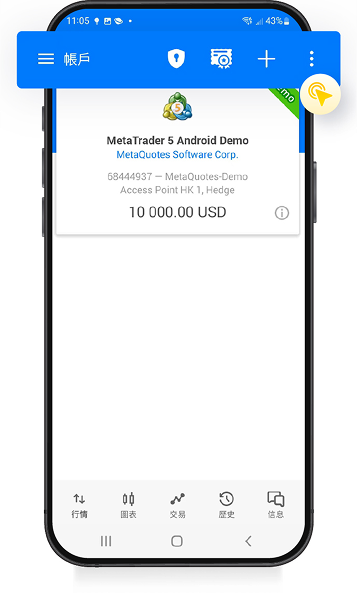
1Go to Settings(Description to be added)
2Select an Account(Description to be added)
3Change Password(Description to be added)